USB Wired Headset: Noise-Cancelling Mic + In-Line Controls
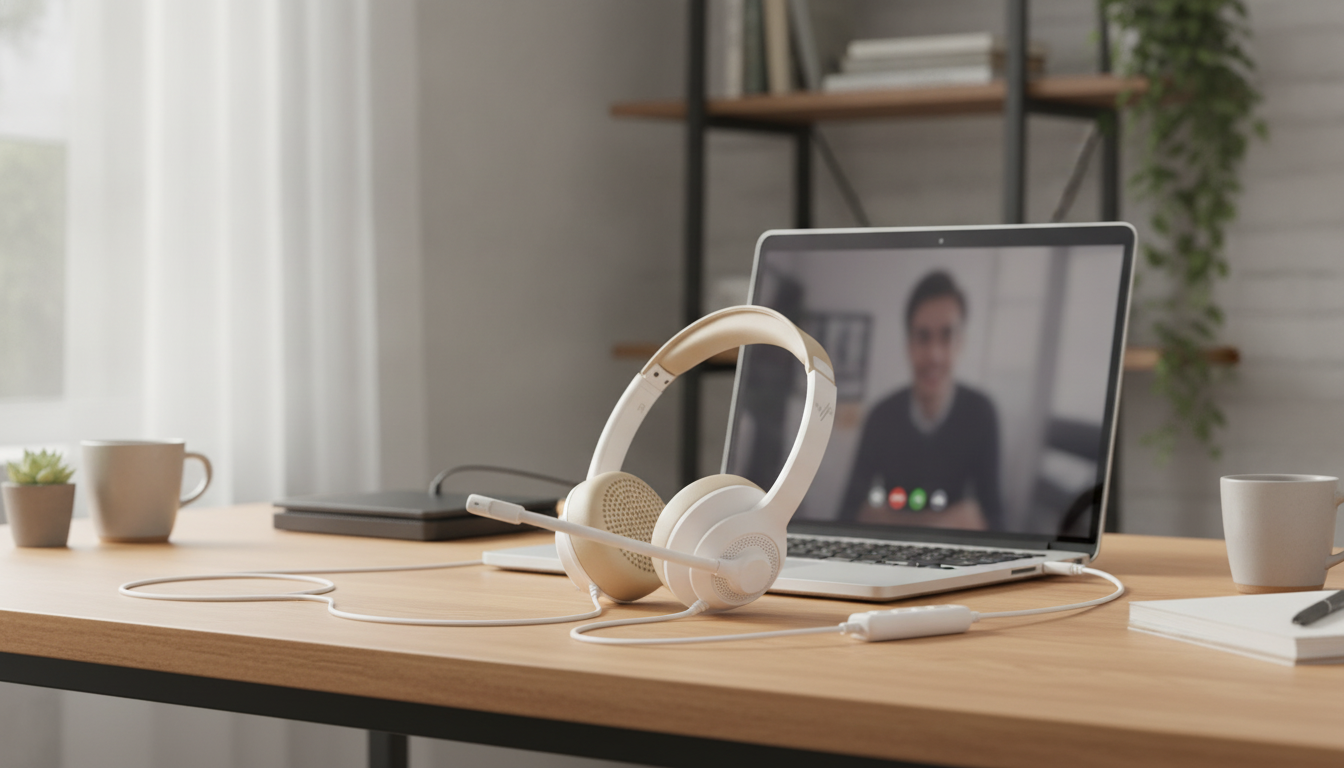
USB Wired Headset with Noise Cancelling Mic & In-line Controls for Office & Home
A USB wired headset is a practical choice for clear calls, dependable audio, and simple setup on laptops and desktops. Whether you’re juggling back-to-back meetings, taking customer calls, or joining online classes, a wired USB connection keeps things predictable—no charging, no pairing, and fewer surprises mid-call. The right mix of a noise cancelling mic and in-line controls also helps everyday conversations feel smoother and more professional.
Why a USB Wired Headset Fits Office and Home Routines
Workdays rarely stay in one place anymore. One hour might be a quiet home office, the next might be a shared workspace or a kitchen table. A USB wired headset fits these shifts because it stays stable for long calls without battery concerns or wireless dropouts. USB connections also tend to “stick” as a consistent audio device—handy when switching between meeting apps or hopping from one call to another.
On many newer laptops, USB is also easier than analog 3.5 mm connections (especially when ports are limited or when combo jacks behave inconsistently). And for hot-desking or shared environments, plug-and-play speed matters—being able to connect and go without troubleshooting saves time and stress.
Product Snapshot
The USB Wired Headset with Noise Cancelling Mic & In-line Controls for Office & Home is built for everyday computer use: meetings, classes, customer support, and general listening. Its noise reducing microphone aims to keep speech more understandable in typical room noise, while in-line controls provide quick adjustments during calls (mute/volume/call control depending on device and app support).
| Item | Details |
|---|---|
| Product | USB Wired Headset with Noise Cancelling Mic & In-line Controls for Office & Home |
| Price | $28.67 USD |
| Availability | In stock |
| Best for | Office calls, home meetings, online learning, daily computer audio |
| Controls | In-line controls for quick access during calls |
Noise Cancelling Microphone: What It Helps With
A noise cancelling (noise reducing) mic is designed to reduce pickup of steady background sounds—think fans, HVAC noise, or low-level room chatter—so your voice stands out more clearly. That’s especially helpful in open rooms, shared apartments, or home offices near common household activity.
Another advantage is consistency. Laptop mics change with lid angle and distance, which can make your volume and tone vary from call to call. A headset boom mic stays in a more repeatable position, helping teammates and clients hear you with fewer “can you repeat that?” moments.
Simple positioning tip: Aim the mic near the corner of your mouth, about a finger-width away. Avoid placing it directly in front of your lips, where airflow can cause breath noise.
In-line Controls: Faster Call Handling
In-line controls are a small feature that can make a big difference on busy call days. Being able to adjust volume without searching for on-screen sliders keeps your focus on the conversation. A quick mute button is also useful for preventing accidental background audio—typing, coughing, or side conversations—from being transmitted.
Some call-management functions depend on the app (Teams/Zoom/Meet) and operating system, so it’s smart to test your controls once before an important meeting. A practical routine is to mute before typing, unmute only when speaking, and keep volume slightly below maximum to avoid distortion.
Comfort and Fit for Long Sessions
If your headset is worn for hours, comfort becomes a real productivity factor. For multi-hour use, look for manageable weight, low clamp pressure, and breathable ear contact points. A secure fit also supports better mic performance because the boom position stays stable when you move.
For glasses wearers, small fit adjustments can reduce pressure around the temples. If your schedule is meeting-heavy, short 1–2 minute breaks each hour can help reduce ear fatigue.
Audio for Meetings and Daily Listening
Meeting-focused audio tends to prioritize speech clarity so voices sound more intelligible. Wired USB audio can help avoid sudden quality drops that sometimes happen with low battery or wireless interference.
For best results, select the headset as both the input and output device inside your meeting app’s audio settings. If someone reports echo, lower your speaker volume and confirm the meeting app isn’t accidentally using the laptop’s built-in microphone.
For additional OS-level guidance, Microsoft and Apple provide clear steps for choosing the right input/output devices: Microsoft Support (Windows audio troubleshooting) and Apple Support (Mac sound input/output).
Setup, Compatibility, and Quick Troubleshooting
Choosing the Right USB Headset for Work-From-Home
Care Tips to Keep Call Quality Consistent
Recommended Picks In Stock
- USB Wired Headset with Noise Cancelling Mic & In-line Controls for Office & Home — a straightforward wired option for clearer calls and quick adjustments.
- Elegant PU Leather Journal Notebook with Thick Soft Cover & Elastic Strap — handy for meeting notes, call scripts, and to-dos without switching windows mid-conversation.
- Elegant Vintage Gold Textured Square Stud Earrings for Women — an easy, polished accessory for camera-on meetings.
FAQ
Will a USB wired headset work with Zoom, Teams, and Google Meet?
Most USB wired headsets function as standard audio devices, so they typically work with Zoom, Teams, and Google Meet. Select the headset as both the microphone and speaker inside the app settings, and confirm microphone permissions are enabled.
How do in-line mute and volume controls behave across different apps?
Volume controls usually work universally because they adjust system audio, but mute and call buttons can depend on the operating system and the meeting app’s support. Test the controls once in your primary app before an important call to confirm behavior.
What’s the best mic position for clearer voice and less background noise?
Place the mic near the corner of your mouth, about a finger-width away, and keep it in a consistent position. Avoid pointing it directly at your lips to reduce breath noise and airflow distortion.










Leave a comment